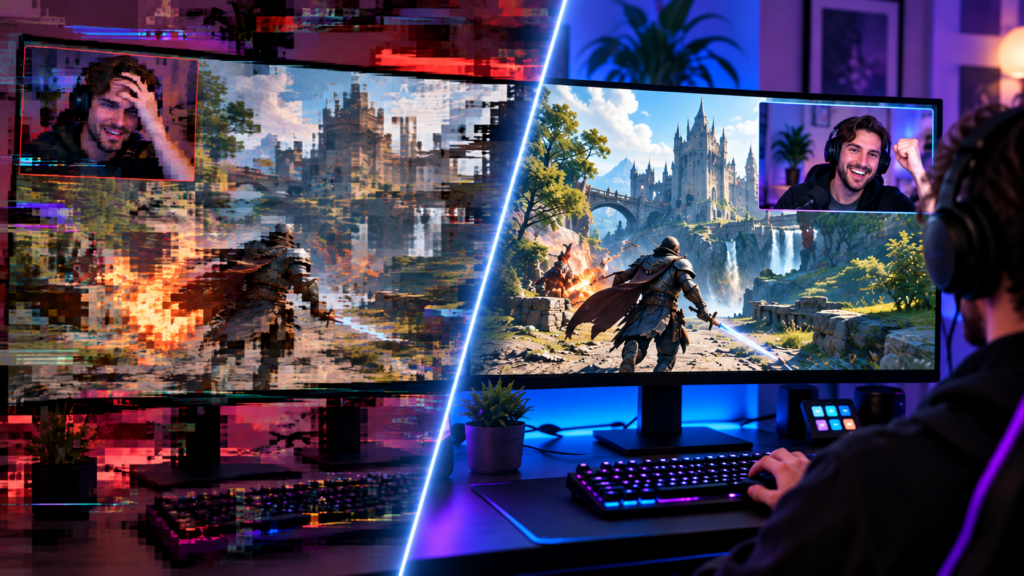
Dropped frames on Twitch look like one problem and are actually three, with three different causes and three different fixes. Most advice you will find treats them as one thing and tells you to lower your bitrate, which solves it roughly a third of the time and wastes your evening the rest.
The good news is that OBS already tells you which one you have. You just have to look in the right place before changing anything.
Find out which problem you actually have
Open the Stats panel in OBS, under View then Stats, and leave it open while you stream. It reports three separate counters, and they mean different things.
- Dropped frames (network). Your machine encoded the video fine, but it could not get it to Twitch. This is a connection problem.
- Skipped frames due to encoding lag. Your encoder could not compress fast enough to keep up. This is a processor or encoder problem.
- Missed frames due to rendering lag. Your graphics card could not draw the scene fast enough to hand it to the encoder. This is a GPU problem, usually caused by the game rather than by OBS.
Whichever counter is climbing is the one to fix. If more than one is climbing, start with rendering lag, because a starved renderer makes everything downstream look broken too.
Change one thing at a time and stream for a few minutes between changes. Almost everyone who cannot fix this is changing four settings at once and losing track of which one helped.
Dropped frames: the network problem
This is the most common of the three and the easiest to reason about. Your bitrate is asking for more upload than your connection reliably delivers.
Your bitrate is too close to your ceiling
A widely used rule is to keep your total stream bitrate under about 75 percent of your measured stable upload. A 6000 kbps stream plus audio therefore wants somewhere around 8 to 10 Mbps of upload that holds steady, not a connection that peaks there.
Test during the hours you actually stream. A speed test at midday on an empty network tells you very little about nine in the evening when everyone in the building is watching something.
The fix is to drop your bitrate by 1000 kbps and watch the counter. If the drops stop, you have found your answer, and a slightly softer picture is a far better outcome than a stuttering one.
Wi-Fi
Wi-Fi is the single most common cause of intermittent drops, and it is deceptive because the average speed looks fine. What kills a stream is jitter and packet loss, neither of which appears in a speed test result. A connection that delivers 50 Mbps on average and briefly loses packets every few minutes will drop frames every few minutes.
Wired Ethernet fixes more streaming problems than any settings change available to you. If running a cable is genuinely impossible, powerline adapters are usually better than Wi-Fi, and a 5GHz band with the router in line of sight is better than 2.4GHz through a wall.
Something else on your network
Upload is shared. A game updating in the background, a cloud backup, someone else on a video call, a console downloading overnight patches at the wrong moment. Any of these will eat the headroom your stream needs.
Check for background uploads on your own machine first, since those are the ones you control. Router quality of service settings can prioritise your streaming traffic if contention is a recurring problem.
The Twitch ingest server
Occasionally the problem is the specific Twitch server you are sending to rather than your connection. In OBS this is under Settings, then Stream, then Server, and it usually defaults to automatic.
If your drops started suddenly with no change on your end, try selecting a different nearby server manually. Twitch also provides a stream inspector tool for looking at what it is receiving from you, which is more reliable than guessing from your own end.
Skipped frames: the encoding problem
If the Stats panel shows frames skipped due to encoding lag, your connection is fine and your encoder cannot keep up.
The overwhelmingly common cause is software encoding on the same machine as the game. If your encoder is set to x264, switch to your graphics card hardware encoder. NVIDIA exposes this as NVENC, AMD as AMF, Intel as QuickSync. All three do the work on dedicated silicon that the game is not competing for.
If you are already on hardware encoding and still skipping, lower the encoder preset from quality toward performance, then reduce output resolution or frame rate. Going from 1080p60 to 720p60 removes more than half the encoding work.
People often respond to this by lowering bitrate, which does nothing, because bitrate is about how much data leaves your machine rather than how hard the encoder is working. This is exactly why identifying the counter first matters.
Missed frames: the rendering problem
Frames missed due to rendering lag mean your graphics card is saturated. OBS is waiting for a frame that the GPU has not finished drawing, usually because the game is consuming everything available.
The fixes here are in the game rather than in OBS.
- Cap your in-game frame rate. Letting a game render 300 frames per second when you stream 60 wastes GPU capacity that OBS needs.
- Lower in-game graphics settings by one tier. Streaming while running the game at maximum is asking one card to do two demanding jobs.
- Use borderless windowed rather than exclusive fullscreen, which usually makes capture cheaper.
- Close anything else using the GPU, including browser tabs playing video, which are heavier than people expect.
The 2026 cause older guides do not mention
If your stream was stable and started dropping frames after you enabled Enhanced Broadcasting or Dual Format, that is your answer, and it is not a fault.
Enhanced Broadcasting works by encoding several quality renditions on your machine instead of sending one feed and letting Twitch transcode it. That is genuinely better for your viewers, particularly if you are not a Partner and therefore not guaranteed transcoding at all. But it means your encoder is now doing several jobs where it previously did one, and your upload is carrying several feeds where it previously carried one.
Dual Format compounds this, because a vertical feed is added on top of the horizontal one. Twitch publishes real numbers for it: 13.5 Mbps of upstream bandwidth when streaming in 1080p, or 22.5 Mbps and above at 1440p. It also caps the video tracks at four when streaming at 1080p or lower, and five at 1440p.
Those are large figures compared with the 8 to 10 Mbps a conventional 1080p60 stream wants. If you turned Dual Format on with an 8 Mbps connection, you will drop frames, and no encoder setting will rescue that. Twitch has also noted it is testing lower system requirements for people added to the Dual Format beta from April 2026 onward, so the published minimums may come down.
The practical rule: treat enabling either feature as a change that requires retesting your headroom, not as a free toggle. If your margin was thin before, it is gone now.
When it is not you
Sometimes the platform is having a bad day. Before rebuilding your OBS profile, check whether Twitch is reporting problems and whether other streamers are describing the same thing at the same time.
The tell is that nothing changed on your end and the drops began abruptly rather than building. Genuine local problems usually correlate with something you did, something you installed, or something new on your network.
Common questions
Do viewers see every dropped frame?
Not one for one, but sustained drops show as stuttering or a brief quality collapse. A handful across a long broadcast is normal and not worth chasing. A counter climbing steadily is worth stopping to fix.
Will lowering my bitrate always fix dropped frames?
Only for network drops. It does nothing for encoding lag or rendering lag, which are the other two failures. Check the Stats panel before changing it.
Is 6000 kbps too high for me?
It is the Twitch ceiling for a standard stream, not a target everyone should hit. If your upload does not carry it comfortably, or you are not receiving transcodes, a lower bitrate reaches more people and looks better doing it.
Should I use Wi-Fi if my speeds are good?
Speed is not the issue. Jitter and packet loss are, and they do not appear in a speed test. Wired is meaningfully more reliable even on a fast wireless connection.
Where to go next
Once the drops are gone, the settings themselves are worth a proper pass. See our guide to the best OBS settings for Twitch, or the wider streaming software stack. Still choosing a broadcaster? OBS vs Streamlabs covers that. If you have not gone live yet, start with how to stream on Twitch.