Most OBS settings guides give you the same five numbers and stop. Those numbers are still broadly right, but in 2026 they are incomplete in a way that matters, because what Twitch does with your stream after it arrives changed in June and the advice has not caught up.
Here are the settings, then the reasoning, then the part almost nobody covers: whether your viewers can actually choose a lower quality when their connection struggles.
The short answer
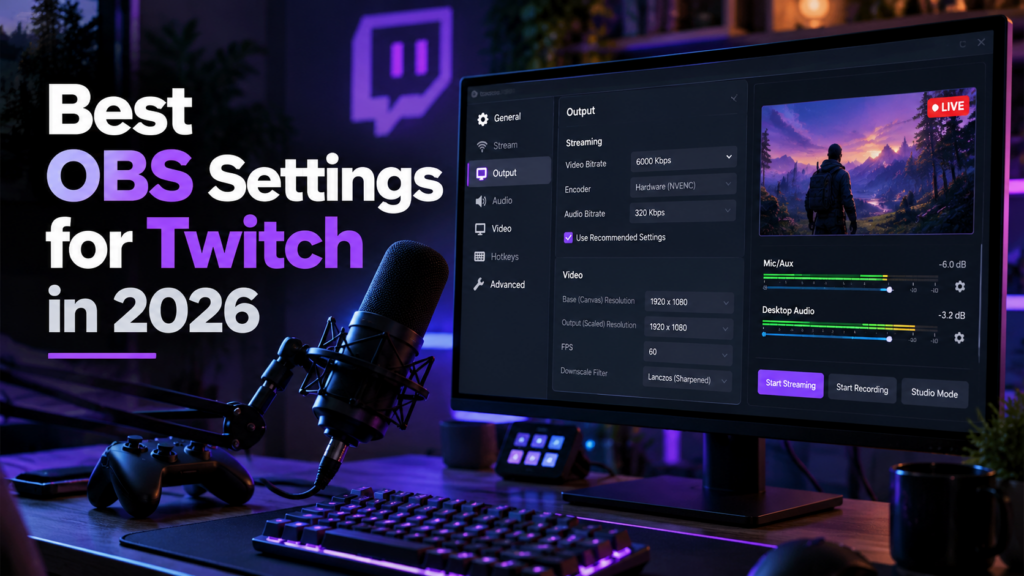
For a standard Twitch stream on a single machine, in OBS Settings under Output with the mode set to Advanced:
- Rate control: CBR
- Bitrate: 6000 kbps for 1080p60, 4500 for 720p60, 3500 for 720p30
- Keyframe interval: 2 seconds
- Encoder: your GPU hardware encoder, not x264, if you have one
- Profile: high
- Audio bitrate: 160 kbps
If those work and your stream is stable, you can stop reading. If you are dropping frames, or you want to understand why 6000 is the number, the rest of this covers it.
Bitrate
Bitrate is how much video data you send per second, and it is the setting people most often get wrong in the same direction: too high.
Twitch states a maximum of 6000 kbps on its broadcast health guidance, and that ceiling applies to everyone. This is the most persistent myth in streaming advice: Partners do not get a higher bitrate allowance. What Partners get is different, and it is covered further down.
The number that actually constrains you is not the ceiling, it is your upload. Twitch suggests roughly 30 percent headroom above your bitrate, and that is a sensible floor rather than a comfortable target. A 6000 kbps stream wants around 8 Mbps of upload that holds steady under load.
Steady is the operative word. An average means nothing here. A connection that reports 15 Mbps but drops to 4 when someone else in the house starts a video call will drop frames during every dip, and your viewers see each one as a stutter. Test during the hours you actually stream, not at midday.
If you are dropping frames, lower the bitrate before changing anything else. A slightly softer stream is invisible to most viewers. A stuttering one is not.
Encoder
The encoder decides which part of your computer does the compression work, and on a single-machine setup this is the difference between a stream that holds up during a firefight and one that falls apart.
Use hardware encoding
NVIDIA cards expose NVENC, AMD cards expose AMF, and Intel chips expose QuickSync. All three do the compression on dedicated silicon that is doing nothing else, which means the load barely touches your game.
Pick the newest option your card offers. On NVIDIA that is usually listed as NVENC H.264, and on recent cards the preset should be set to quality rather than performance unless you are seeing encoder overload warnings.
When x264 makes sense
Software encoding on the CPU can look slightly better at the same bitrate, and at 6000 kbps the gap is small enough that most viewers would not identify it in a blind comparison. It only makes sense if you have a genuinely spare processor, which usually means a second machine dedicated to encoding.
Running x264 on the same machine as the game is the most common self-inflicted cause of dropped frames. If you are on the veryfast preset and still seeing encoding overload, the answer is to switch to hardware, not to keep lowering the preset.
Keyframe interval, rate control and profile
These three are set once and then left alone, but each of them breaks something specific if set wrong.
Keyframe interval goes to 2 seconds. Not 0, not automatic. A keyframe is a complete picture rather than a description of what changed since the last one, and Twitch needs them at predictable intervals to cut your stream into the lower quality options viewers switch to. Leave it on automatic and that process becomes unreliable.
Rate control goes to CBR. Constant bitrate sends the same amount of data whether the screen is a static menu or an explosion. Variable modes look appealing because they save bandwidth on quiet scenes, but live streaming punishes the spikes, and the spikes are exactly when you need reliability.
Profile goes to high. There is no meaningful reason to use main or baseline for Twitch on any hardware from the last decade.
Resolution and frame rate
You have a fixed amount of bitrate and two things competing for it: pixels and motion. You cannot maximise both, so decide which one your content needs.
- Fast games with constant camera movement, shooters and racing especially, look better at 720p60 than at 1080p30. Motion clarity matters more than pixel count when everything is moving.
- Slower games and talk content are comfortable at 1080p30, where the extra resolution has time to be visible.
- 1080p60 is the goal, but only at a bitrate that supports it. On 6000 kbps it is achievable for most content and marginal for the busiest scenes.
Set your base canvas to your monitor resolution and scale the output down. Downscaling in OBS produces a cleaner result than changing your game resolution, and the filter should be set to Lanczos.
The part most settings guides skip
Getting a clean 1080p60 stream out of your machine is only half the job. The other half is whether a viewer on a phone with two bars can watch it at all.
Normally Twitch handles that by transcoding: it takes your single 1080p feed and generates the 720p, 480p and 360p options that appear in the quality menu. The catch is that transcoding is not guaranteed. Partners get priority. Everyone else gets it on a best-effort basis, meaning when spare server capacity exists.
When you do not get transcodes, your quality menu shows one option: source. A viewer whose connection cannot carry 6000 kbps has no fallback and simply buffers until they leave. This is why a small channel streaming at maximum quality can perform worse than the same channel streaming at 3500 kbps, and it is invisible from the broadcaster side because your own connection is fine.
Until recently the only workaround was to stream lower and hope. That is what changed.
Enhanced Broadcasting, and what actually changed in 2026
Enhanced Broadcasting moves the work of making those quality options from Twitch servers onto your machine. Instead of sending one feed and hoping for a transcode, OBS encodes several renditions at once and sends them all. Your viewers get a working quality ladder regardless of whether Twitch had capacity to build one.
You enable it in OBS under Settings, then Stream, by connecting your Twitch account and ticking the option. Automatic Stream Configuration then pulls settings from Twitch and matches them to what your hardware can handle, which is why you may see a message telling you Twitch is controlling some of your stream settings.
Multi-resolution streaming in H.264 up to 1080p is open to anyone. In June 2026 two things came out of testing. Dual Format, which sends a vertical and a horizontal feed from a single broadcast, opened to all streamers. 2K, meaning 1440p over HEVC, opened to Partners and Affiliates.
The 2K rollout carried higher bitrates: 1440p over HEVC moved to 9 Mbps, and the 1080p rendition inside a 2K Enhanced Broadcasting stream moved to 7.5 Mbps. Read that second figure carefully, because it is the one that gets misquoted. It is the 1080p layer within a 2K stream, not a new ceiling for ordinary 1080p streaming.
Twitch has not reconciled its own documentation on this. Its Enhanced Broadcasting page still describes the top rendition of a normal stream as 1080p60 at 6 Mbps, while the 2K page describes the raised figures. Both are live. If you are not streaming 2K through Enhanced Broadcasting, 6000 remains your number.
What you cannot do yet
A number of 2026 guides claim AV1 and 4K are now generally available on Twitch. They are not. Both remain restricted to the Enhanced Broadcasting beta community, which Twitch is not actively expanding.
This matters practically, because AV1 is genuinely efficient enough to change your settings if you had it. Roughly 40 percent more efficient than H.264 means real quality gains at the same bitrate. If you have an RTX 40-series card and have read that you should switch OBS to AV1 for Twitch, check whether the option is actually available to your account before rebuilding your profile around it. For YouTube it is a different story, but that is a different platform with different rules.
If you are still dropping frames
Work through these in order, changing one thing at a time.
- Lower the bitrate by 1000 kbps and watch whether the drops stop. If they do, the problem is your connection, not your machine.
- Switch from x264 to your GPU hardware encoder. If OBS was reporting encoding overload rather than network drops, this is almost always the fix.
- Move from Wi-Fi to wired Ethernet. This resolves more intermittent problems than any settings change.
- Open the OBS Stats panel and check whether frames are being dropped due to network or skipped due to encoding lag. They are different failures with different fixes, and the panel tells you which one you have. Our guide to Twitch dropped frames works through all three.
Choosing between broadcasters first? See OBS vs Streamlabs. For the wider stack these settings sit inside, see our streaming software guide. If you have not gone live yet, start with how to stream on Twitch.